You keep hearing about “AI agents,” autonomous systems that do real work without you hovering over them. But every guide you find is written for developers. Full of API keys, cron jobs, and Docker containers.
I’ve been looking for a way to change that, a way for anyone to build their own agents that wake up on a schedule, complete a task, and go back to sleep. No code required.
That tool finally exists. It’s called Claude Cowork, and it’s part of the Claude Desktop app. If you’ve heard of Claude Code (Anthropic’s coding agent for developers), Cowork is built on the same architecture but wrapped in an interface anyone can use. No terminal. No debugging. No code to write or maintain.
In this guide you’ll learn: what autonomous agents are, how to set one up, three ready-to-use examples, and what to do if you want your agents to run even when your computer is off.
Table of Contents
- What Is an Autonomous Agent?
- Getting Started: What You Need
- Usage and Cost Considerations
- The Honest Truth: Does This Run 24/7 in the Cloud?
- Example 1: Daily Slack Message Agent
- Example 2: Daily Research Agent
- Example 3: Weekly File Organizer
- Managing Your Agents
- Tips for Writing Great Agent Prompts
- What If I Want My Agent to Run When My Computer Is Off?
- Wrapping Up
What Is an Autonomous Agent?
In the simplest terms: an autonomous agent is an AI that does work for you on a schedule, without you having to ask every time. You describe a task once, set a schedule, and the AI handles it going forward.
Think of it like this: you’re hiring a tireless assistant. You give them a job description once, and they show up and do the work every morning, every week, or whatever cadence you choose. They never forget, never get tired, and never need a coffee break.
What you can automate
- Daily morning briefings: Claude searches the web, gathers news in your field, and drops a summary into your calendar or files
- Slack messages: daily standup prompts, weekly metrics summaries, or team digests posted automatically to a channel
- Research reports: monitor topics, competitors, or markets and receive formatted findings on a schedule
- File organization: Claude cleans up your Downloads folder, renames files, and sorts them into the right places
- Spreadsheet updates: refresh data, recalculate formulas, and format weekly reports
- Presentation generation: Claude creates slide decks from your data on a recurring basis
Getting Started: What You Need
Before diving in, here’s what you’ll need:
- A Claude paid plan: Pro ($20/mo), Max ($100 or $200/mo), Team, or Enterprise
- Claude Desktop app: installed and fully updated (Mac or Windows). If you don’t have it yet, head to claude.com to download it.
- Connectors: set up for any apps you want Claude to interact with (Slack, Google Calendar, Gmail, Notion, etc.)
To install connectors: Open Claude Desktop → Click the puzzle piece icon (Customize) → Connectors → Browse Connectors → Find the app you need → Click Connect and authorize.
Usage and Cost Considerations
Before you start building, it’s worth knowing what these agents cost to run. Cowork tasks consume more of your usage allowance than regular chats because they involve multi-step reasoning, tool usage, and longer processing times.
| Plan | Recommendation |
|---|---|
| Pro ($20/mo) | Good for 2-3 lightweight scheduled tasks |
| Max ($100/mo) | Comfortable for 5-10 regular tasks |
| Max ($200/mo) | Heavy automation workflows with many daily tasks |
Each scheduled task draws from your daily usage allowance. If you’re hitting limits frequently, consider batching related work into a single task, reducing frequency (weekly instead of daily), or upgrading your plan.
The Honest Truth: Does This Run 24/7 in the Cloud?
This is the single most important thing to understand. Cowork scheduled tasks are not cloud-deployed services. They run locally on your machine. Here’s what that means in practice:
| Scenario | What Happens | Your Action |
|---|---|---|
| Computer awake, Claude Desktop open | ✅ Runs on time | Nothing, enjoy! |
| Computer asleep at scheduled time | ⚠️ Skipped | Runs automatically when you wake the computer |
| Claude Desktop closed | ⚠️ Skipped | Runs when you re-open the app |
| Computer turned off / shut down | ❌ Skipped | Runs when you start up and open Claude |
Good news: If a task is skipped, Cowork will automatically run it as soon as your machine wakes up. You’ll see a notification letting you know. It won’t be lost, just late.
How to make it as reliable as possible
- Keep your computer awake. Set your display to turn off but prevent the computer from sleeping. On Mac: System Settings → Energy → Prevent automatic sleeping. On Windows: Settings → Power & Sleep → Set sleep to “Never.”
- Keep Claude Desktop running. Add it to your startup apps. On Mac: System Settings → General → Login Items. On Windows: Settings → Apps → Startup.
- Leave your computer plugged in overnight if you need tasks to run early in the morning.
This is good enough for most people. But if you need something more robust, keep reading. The “always-on” section below covers your options.
Example 1: Daily Slack Message Agent
This agent posts a message to a Slack channel every day at 9:00 AM. It could be a daily standup prompt, a motivational message, or a summary of yesterday’s metrics. The result looks like any other Slack message, and your team might not even realize it’s automated.
Step-by-step
- Connect Slack. Go to Customize → Connectors → find Slack → Click Connect → Authorize access to your workspace.
- Open Cowork. Click the “Cowork” tab at the top of Claude Desktop to switch from Chat to Tasks mode.
- Start a new task. Click “+ New task” in the upper left corner.
- Type
/schedule. This launches the scheduling skill. Claude walks you through a few questions. - Write your prompt. Be specific. Here’s an example:
Every weekday at 9:00 AM, post a message in the #daily-standup Slack channel. The message should include: a greeting, a reminder of our team’s top 3 priorities this quarter, and a prompt asking each team member to share what they’re working on today. Keep the tone friendly and professional.
- Set the schedule. Choose your frequency (daily, weekdays, weekly) and the time (9:00 AM).
- Click Save. Done! Your agent is created.
What success looks like
After the first run, you’ll see a message appear in your Slack channel just like any other post. Claude will also rewrite your prompt based on what it learned, figuring out the exact channel ID, formatting, and connectors to use. Future runs will be faster and more reliable.
Example 2: Daily Research Agent
This agent searches the web every morning for news in your field and delivers a summary. You’ll wake up to a neatly formatted file on your Desktop with the top stories of the day, curated by AI to match your exact interests.
Step-by-step
- Connect Google Calendar (optional, if you want findings delivered as a calendar event) or any other app where you want the output.
- Open Cowork → + New task → type
/schedule. - Write your research prompt:
Every weekday at 8:00 AM, search for the latest news about artificial intelligence, specifically about AI agents, AI automation, and new product launches. Focus only on factual, verified news. Skip opinion pieces and speculation. Summarize the top 5 stories in a bullet-point format. Save the summary as a file on my Desktop called AI-News-[today’s date].md.
- Set schedule to Daily, 8:00 AM.
- Click Save.
What success looks like
You’ll find a new Markdown file on your Desktop each morning with a clean, scannable summary of the day’s top stories. Each entry will include a headline, a brief summary, and a source link.
Variations you can try
- Competitor monitoring: “Search for news about [competitor names] and summarize any product updates, funding rounds, or leadership changes.”
- Industry digest: “Search for developments in renewable energy policy and create a one-page briefing document.”
- Job market tracker: “Search for new senior product manager roles at Series B+ startups and list them with company, title, and link.”
Example 3: Weekly File Organizer
This agent tidies up your Downloads folder every Friday afternoon. No more chaos: PDFs go to one folder, images to another, spreadsheets to their own spot. You come back Monday to a clean slate.
Step-by-step
- Open Cowork → + New task → type
/schedule. - Write your prompt:
Every Friday at 4:00 PM, organize my Downloads folder. Move PDFs to Documents/PDFs, images to Pictures/Downloads, spreadsheets to Documents/Spreadsheets, and presentations to Documents/Presentations. If a folder doesn’t exist, create it. Leave anything you’re unsure about in Downloads. When done, create a short summary of what was moved.
- Set schedule to Weekly, Friday, 4:00 PM.
- Click Save.
What success looks like
When the task completes, you’ll find a summary file listing everything that was moved and where it went. Your Downloads folder will be clean, and your documents will be neatly sorted into their respective folders.
Managing Your Agents
All your scheduled tasks live in one place. Click “Scheduled” in the Cowork left sidebar to see everything at a glance.
| Action | How to Do It |
|---|---|
| Pause a task | Click the task in Scheduled → toggle it off |
| Run on demand | Click the task → click “Run now” (great for testing) |
| Delete a task | Click the task → click Delete |
| View history | Click the task to see past runs, including any that were skipped |
| Edit instructions | Click the task → edit the prompt or schedule |
Tips for Writing Great Agent Prompts
The quality of your agent depends entirely on how well you describe the task. Here’s what matters most:
1. Be extremely specific
Don’t say “Post something to Slack.” Say “Post a message in #marketing-updates summarizing our top 3 campaign metrics from this week. Include click-through rate, conversion rate, and spend. Format as a bulleted list.”
2. Tell Claude where to find and put things
Mention specific folder paths, channel names, calendar names, and file locations. The more explicit, the better.
3. Set the tone
If the output goes to other people (Slack, email), describe the voice you want: formal, casual, friendly, brief, detailed.
4. Test before you schedule
Run the task once manually (using “Run now”) before putting it on autopilot. Review the output. Tweak the prompt. Run again. Only schedule it once you’re happy with the result.
5. Use context files for consistency
Create small text files in your working folder (like about-me.md or voice-and-style.md) that describe who you are, what you do, and how you like things written. Cowork reads these automatically at the start of every session.
What If I Want My Agent to Run When My Computer Is Off?
This is the most common question people ask after setting up their first scheduled task. Cowork is powerful, but it runs locally, meaning your computer needs to be awake and Claude Desktop needs to be open.
Here are three practical approaches for non-engineers:
Option A: Keep Your Computer On
This is what most people do, and it works well enough for non-critical tasks. Configure your machine so it never sleeps and Claude Desktop always starts automatically.
- On Mac: System Settings → Energy → “Prevent automatic sleeping when display is off” + add Claude Desktop to Login Items.
- On Windows: Settings → Power & Sleep → set Sleep to “Never” + add Claude Desktop to Startup apps.
Limitation: Unexpected restarts (OS updates, power outages) will interrupt tasks. Good enough for most use cases, but not bulletproof.
Option B: Use a Hardware Mouse Jiggler ⭐ Recommended
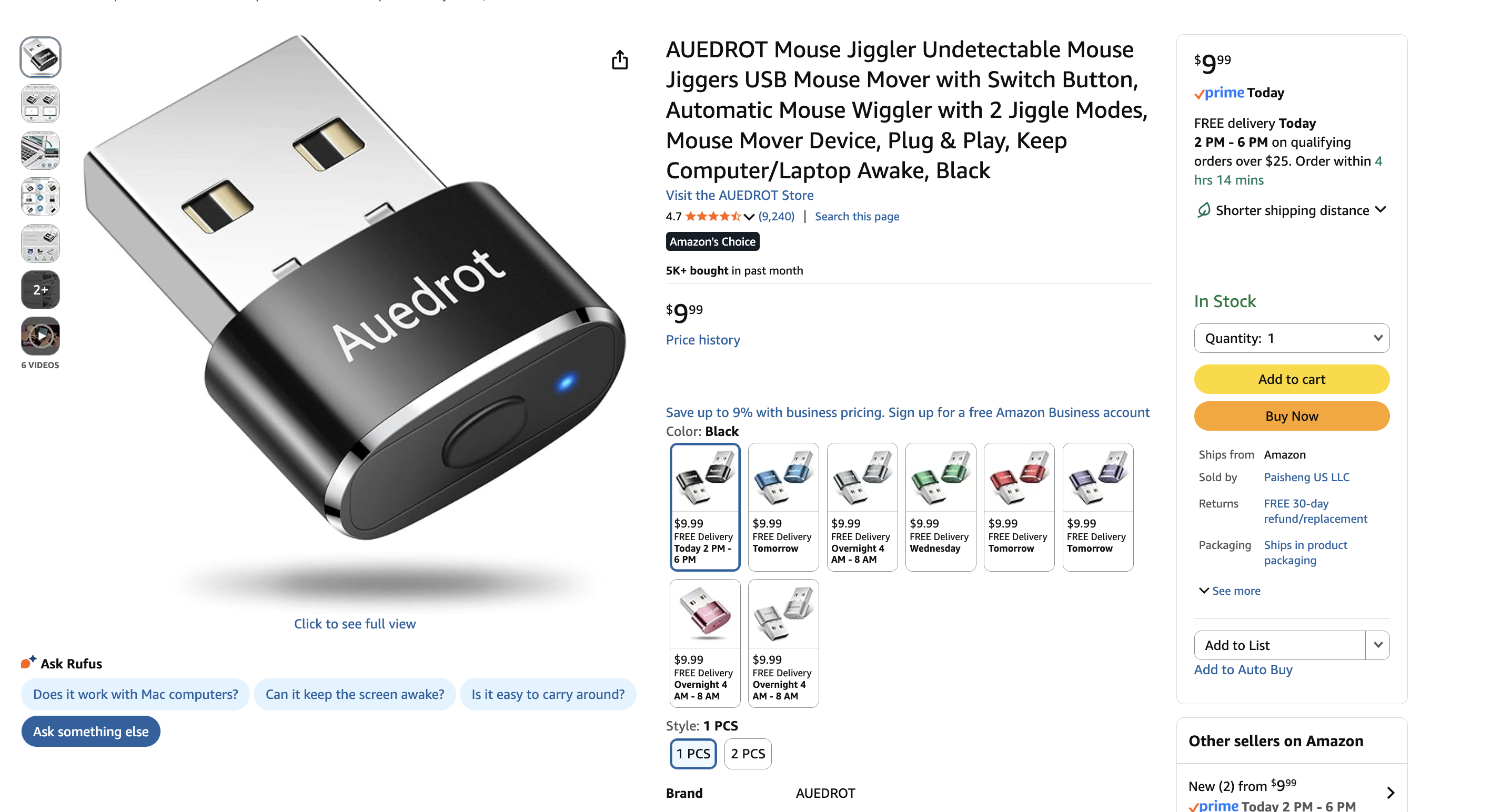
This is what I personally use. When I go to sleep at night or head out to dinner and have an automation running, I plug in a hardware mouse jiggler to keep my computer awake. It simulates tiny mouse movements so your machine never falls asleep.
The beauty of this approach is simplicity. You don’t have to change any system settings or dig through configuration menus. Plug the jiggler in when you want your computer to stay awake, and pull it out when you want your computer to go back to sleep. They come in USB or USB-C and typically cost around $10.
A word of caution: In many organizations, mouse jigglers are frowned upon for obvious reasons. Be aware of your own organization’s policies before using one. Stay out of trouble.
Option C: A Dedicated Always-On Mini Computer
This is the most reliable option for non-engineers. Buy a small, inexpensive computer that lives on your desk (or in a closet), runs 24/7, and does nothing but run Claude Desktop and your scheduled tasks.
What to buy:
- Mac Mini ($499 new, or $200-300 refurbished). Quiet, reliable, tiny power draw.
- Any small Windows mini PC ($150-300). Beelink, MinisForum, or Intel NUC all work.
- A refurbished laptop with the lid closed, plugged in permanently.
Setup: Install Claude Desktop, sign in, set it to never sleep, add it to startup apps, connect your Slack / Calendar / other connectors, create your scheduled tasks, plug it in, and walk away.
This is the closest thing to a “cloud deployment” without any technical skill. Your little computer becomes your personal AI server. It runs your agents while you sleep, travel, or work from your main machine.
Want something more technical?
If you have a developer friend or some technical comfort, there are cloud-based options like GitHub Actions paired with the Claude API, or full cloud deployments on platforms like Railway or Render. These give you true 24/7 reliability without any hardware. But they require coding knowledge and ongoing maintenance, which is outside the scope of this guide.
Wrapping Up
Building your own autonomous AI agent used to require developer skills. With Claude Cowork, it doesn’t anymore. You describe a task in plain English, set a schedule, and let Claude handle the rest.
Start with one simple agent, maybe a daily research summary or a weekly file cleanup, and see how it feels. Once you trust it, add more. Before you know it, you’ll have a small team of AI assistants handling the repetitive work that used to eat up your mornings.
The barrier to building agents isn’t technical anymore. It’s just knowing that you can.